Pharmacy, lab & radiology
Each department has a queue that receives the doctor's orders directly, without paper.
Pharmacy
Dispensing a prescription
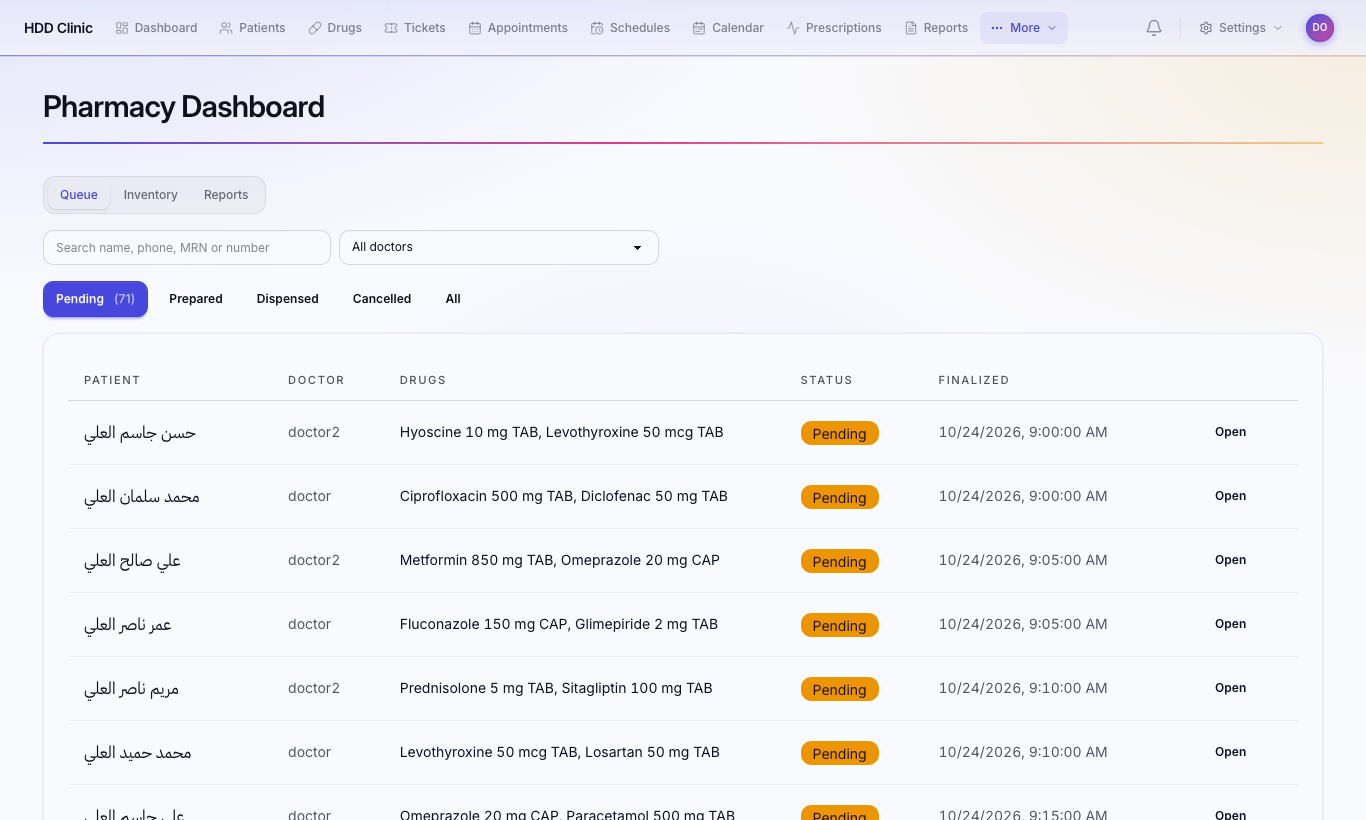
- Pharmacy lists finalized prescriptions waiting to be dispensed.
- Open one. Each drug shows Requested, Dispensed, Remaining.
- Scan or enter barcode, then Verify to confirm the box is the right drug.
- Mark Prepared, then Dispense (with signature); the recipient signs on screen.
To cancel, press Cancel and give a Reason for cancellation.
Inventory
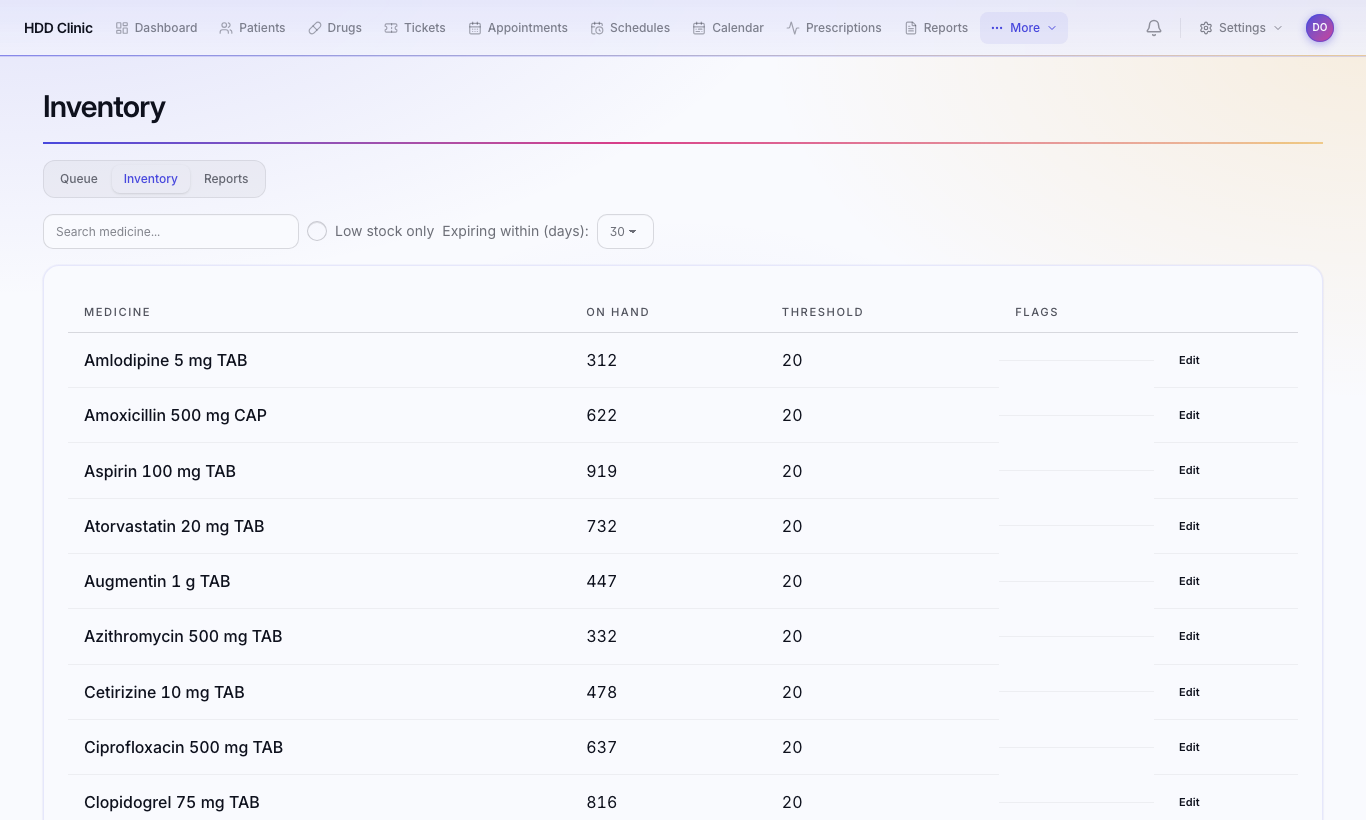
Pharmacy → Inventory: drugs, quantities and expiry dates. Stock movements lists every receipt and dispense. You are warned as expiry dates approach.
Pharmacy → Reports: dispensing and stock summary for a chosen period.
Laboratory
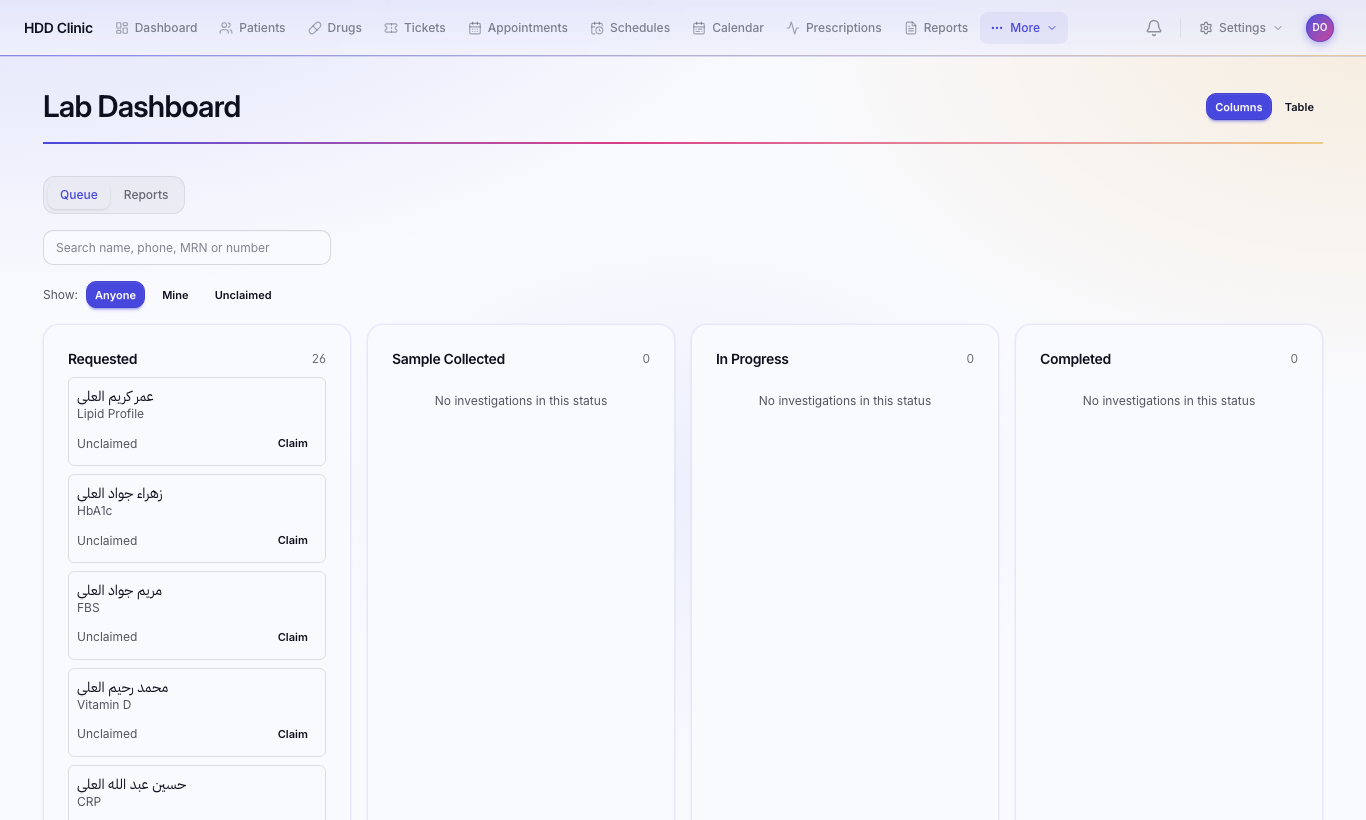
- Laboratory lists test orders from doctors.
- Claim an order so no colleague works on it too. Release returns it to the queue.
- When done, press Upload result:
- Result file (PDF / image);
- Notes (optional);
- Signature.
- Press Upload. The result reaches the doctor on the ticket and in the patient file, and the patient in their portal.
Laboratory → Reports: completed tests for a chosen period.
Radiology
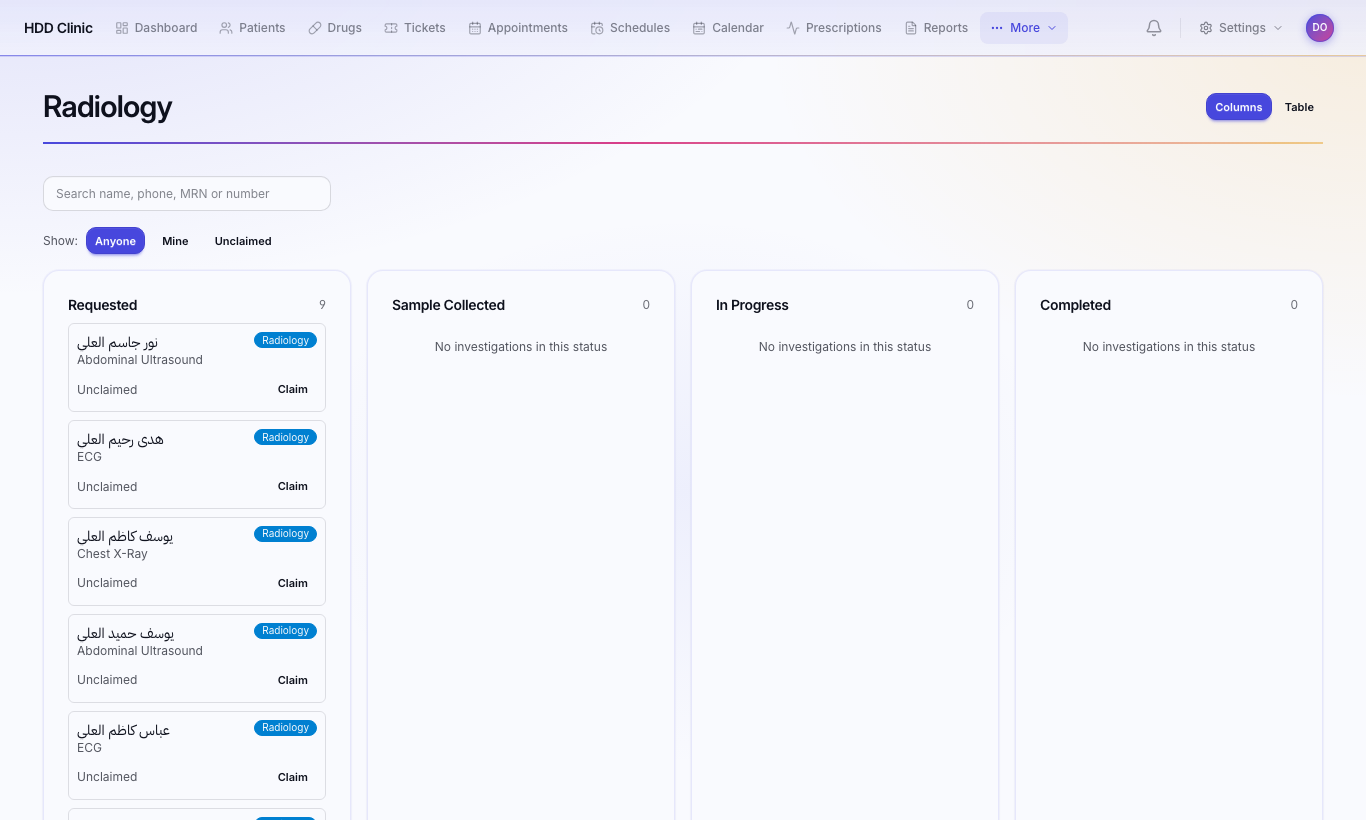
Same steps as the lab: Claim → Upload result → Upload, from Radiology.
Departments
If your clinic has several departments (sub-clinics, wards), a doctor defines them under Settings → Departments; their numbers appear in Statistics.