Doctor: tickets & prescriptions
The idea
Every visit is a ticket in today's queue. A ticket comes from:
- a patient with an appointment whom reception checked in, or
- a walk-in registered by reception.
Either way it appears on Tickets with a queue number.
Pending → In progress → CompletedYour day, step by step
1. Open the queue
Go to Tickets. Today's tickets show queue number, patient, complaint and status. You can:
- change the day with Filter by date;
- filter by status: Pending, In progress, Completed, Refunded;
- search by patient, type or complaint.
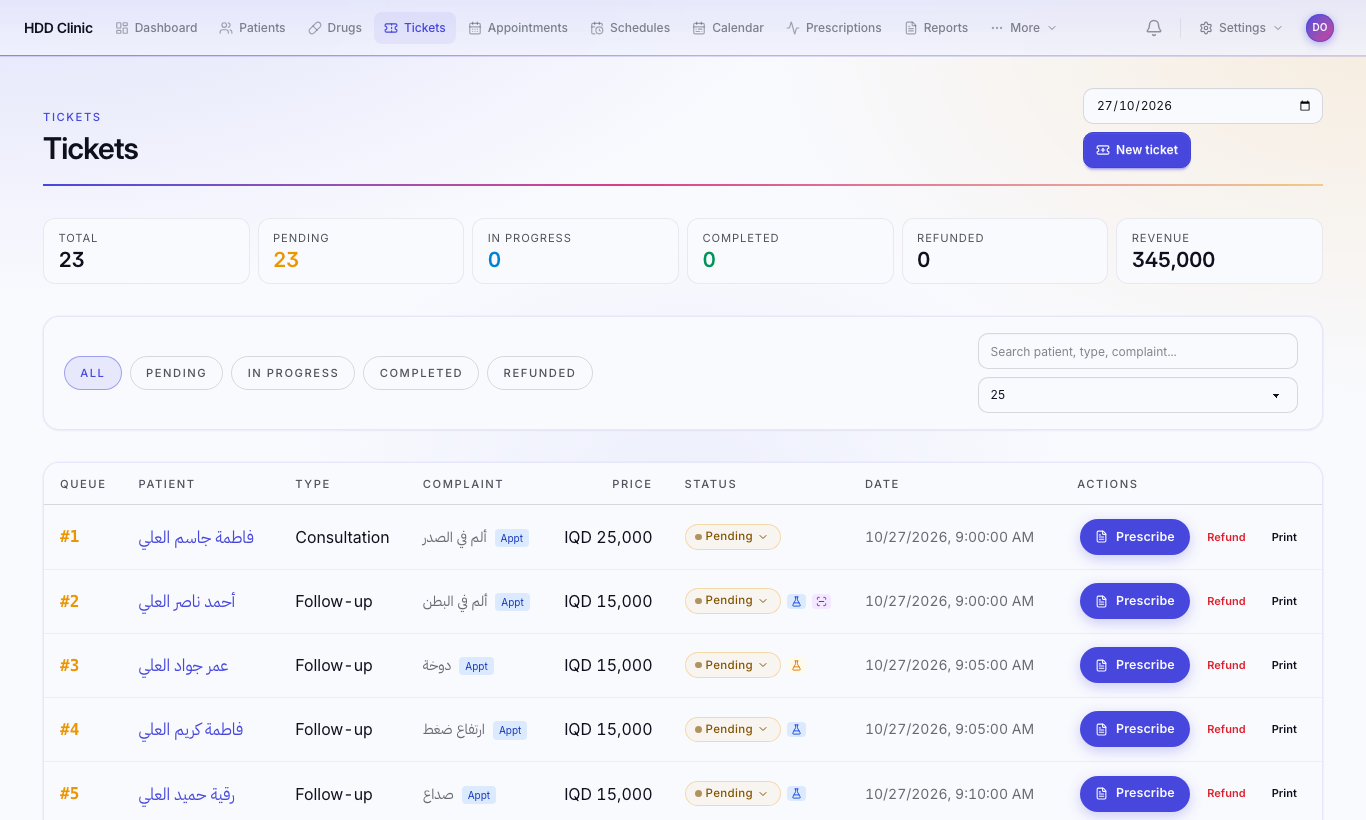
A ticket shows Lab result ready or Radiology result ready when results arrive.
2. Start the visit
Open the ticket and press Start. Status becomes In progress.
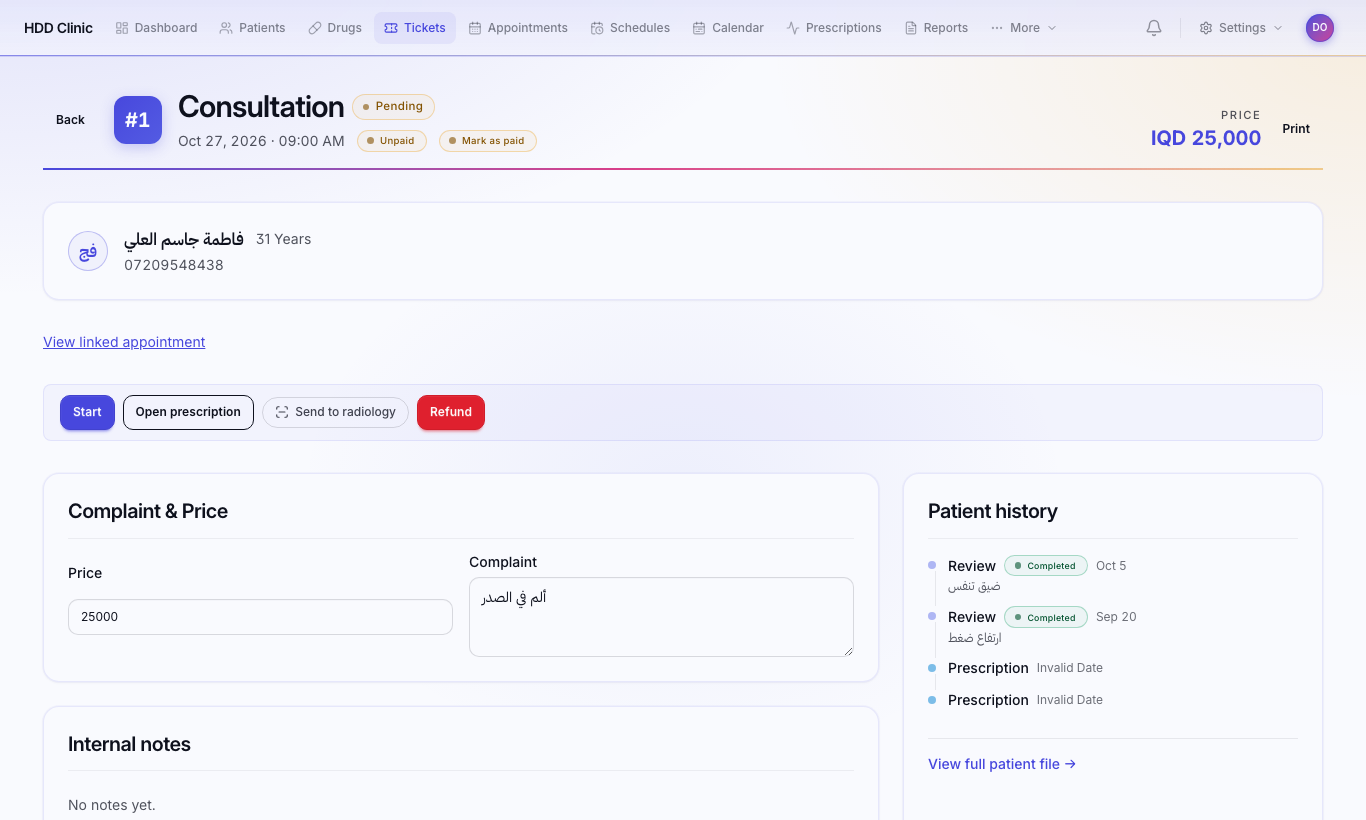
The ticket page shows:
- Patient history and previous visits;
- Allergies, prominently, before you prescribe;
- Recent lab results and Radiology results with Download;
- Internal notes for the team (never printed);
- View full patient file.
3. Write the prescription
Press Prescribe in the queue, or Open prescription on the ticket. The Prescription Writer opens:
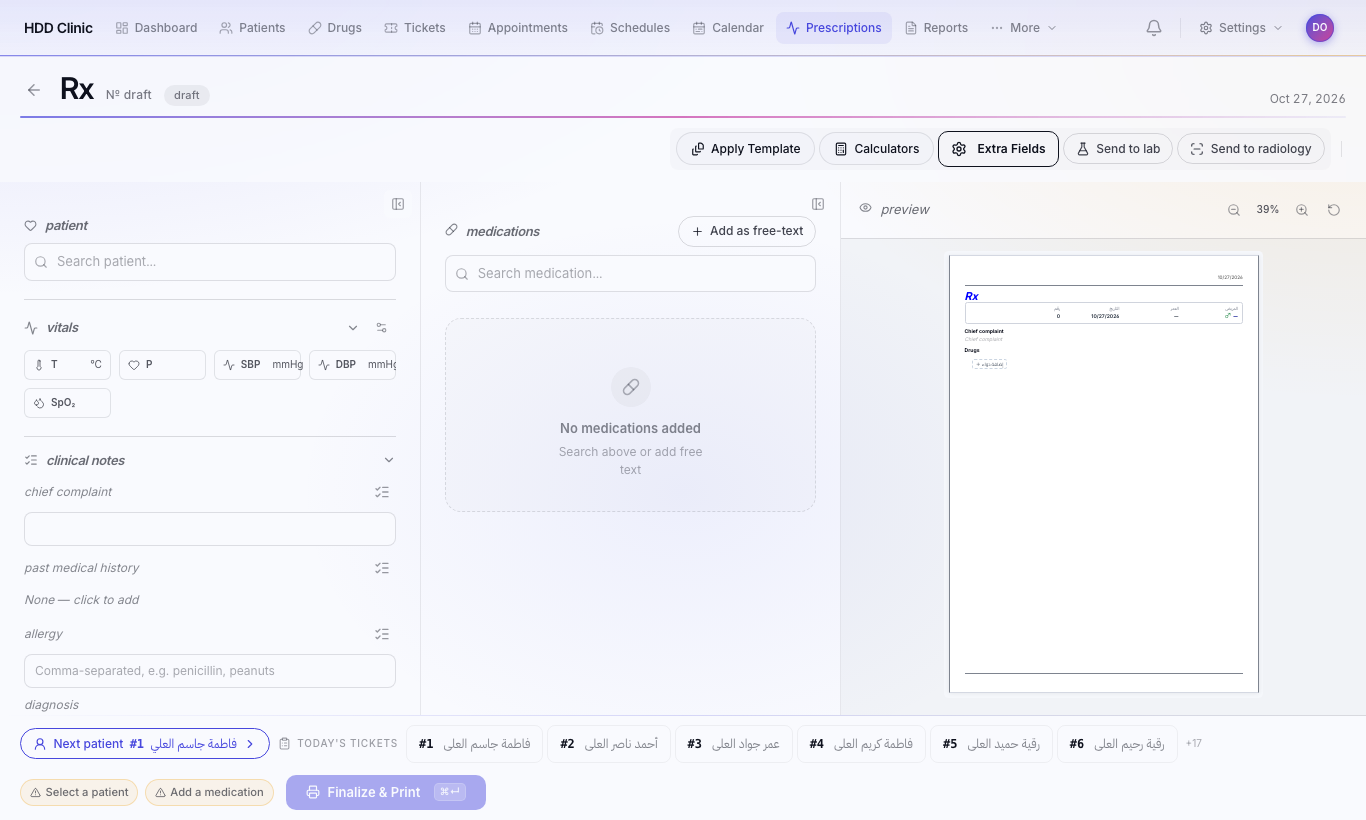
- Chief Complaint, Past History, Examination, Diagnosis: pick from the list, or type something new and press Add. What you add is saved for next time.
- Medications: search the drug, then set dosage, frequency, timing and duration.
- Drug interactions and allergies trigger a warning.
- Preview shows the printed layout.
- Finalize & Print. Shortcut: Ctrl+Enter (⌘+Enter on Mac).
Prescription templates
For common cases create a template under Settings → Prescription Templates with ready medications you add in one click.
Assistants who write prescriptions
Without the Co-sign prescriptions permission they see Submit for Co-sign instead, and the prescription goes to the doctor to sign.
4. Order lab or radiology
From the Prescription Writer:
- Send to lab: choose the tests and press Send.
- Send to radiology: search the exam, or Create "…" and add if it is missing, then Send.
The order reaches the lab or radiology queue immediately. When the result is uploaded it appears on the ticket and in the patient file.
For a pharmacy or lab outside the clinic, see External service providers.
5. Finish the visit
On the ticket press Complete. Status becomes Completed.
Editing or reprinting a prescription
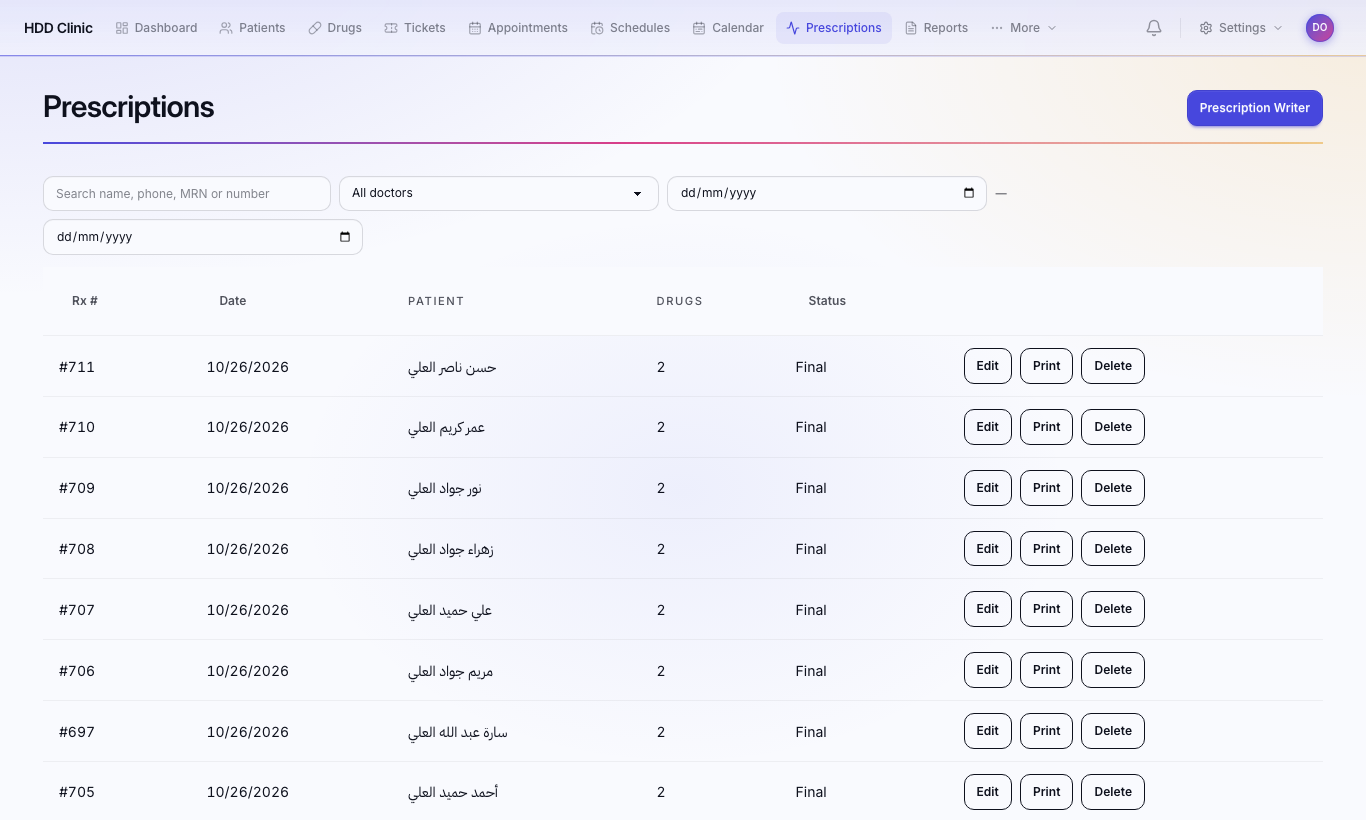
Prescriptions lists all past prescriptions. Open one to print it again or edit it, then Save Changes.
Medical reports
Reports → New report:
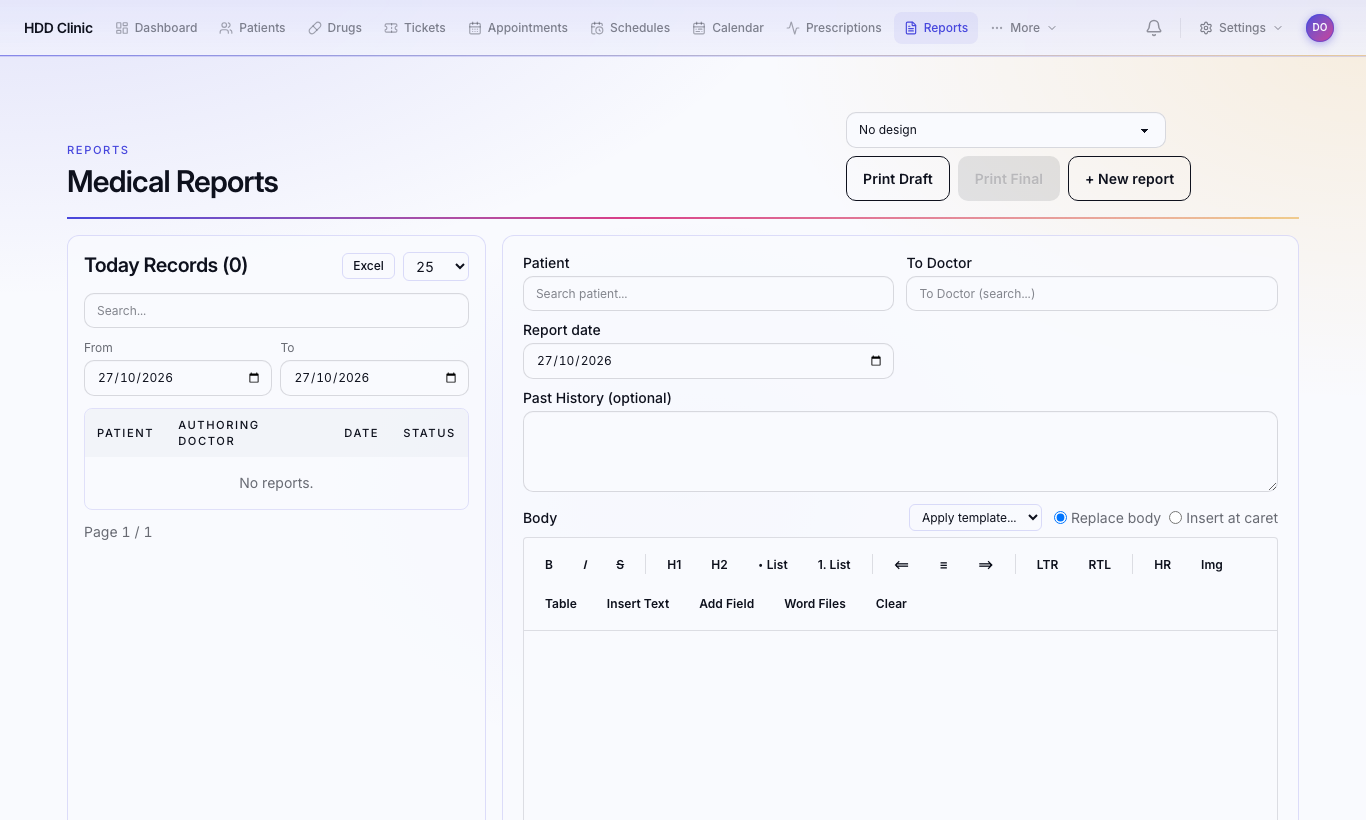
- Choose the patient and a report template.
- Write, or use Insert field for ready values (patient name, age, …).
- Save, then Print Draft to review or Print Final.
Manage templates and snippets under Reports → Report templates / Report snippets, and referring doctors under Settings → Referring doctors.
Refunding a ticket
On the ticket press Refund and confirm. A ticket that is In progress cannot be refunded; move it back to Pending first with Change status.