Sign in & setup
Opening the app
Clin-iq runs in the browser on a computer or phone. Nothing to install.
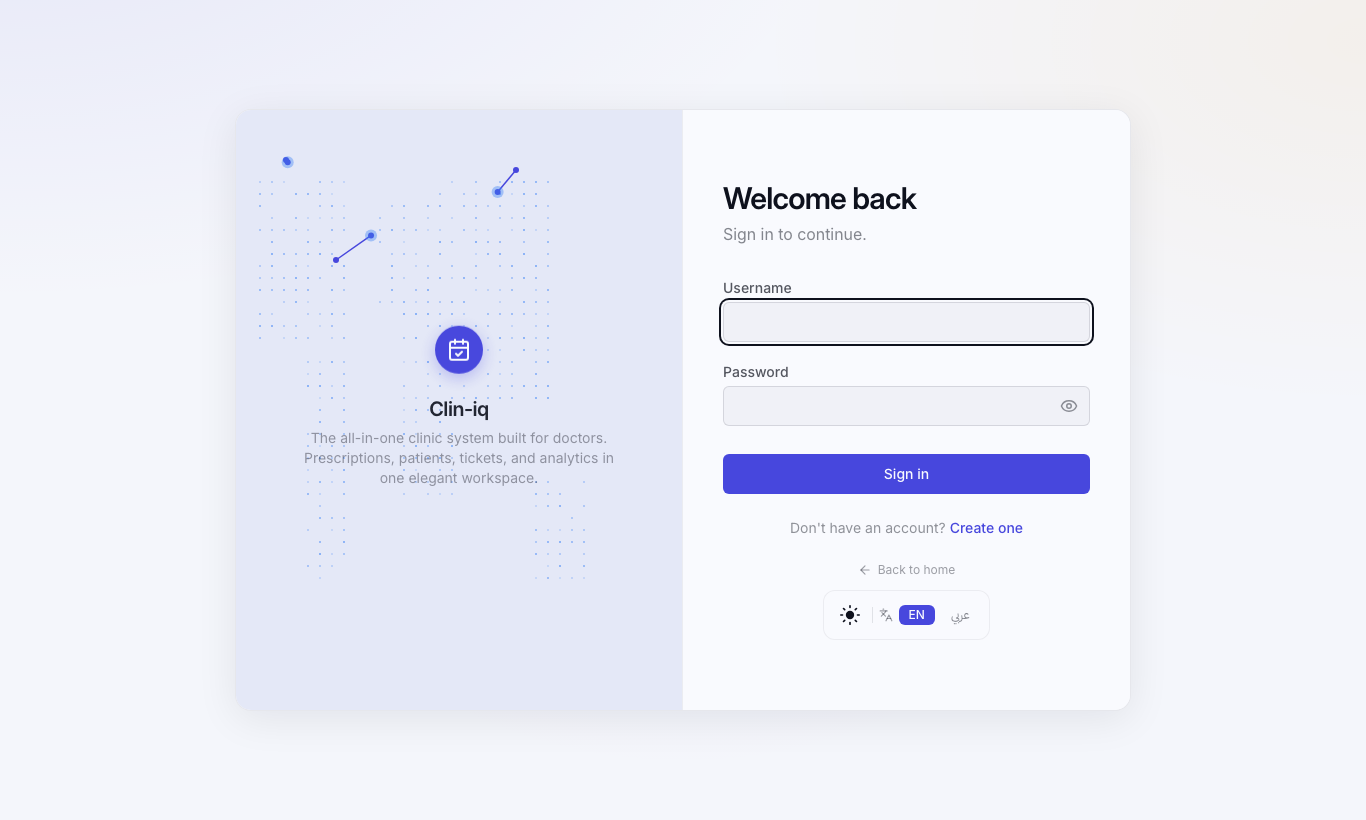
- Address: https://clinic.iq-server.com/login
- Enter your Username and Password, then press Sign in.
TIP
Bookmark the address, or add it to your phone's home screen so it opens like an app.
Creating a new clinic account
If you are a doctor without an account:
- Open https://clinic.iq-server.com/signup.
- Choose account type Doctor / clinic.
- Fill in username, password, your name, clinic name and email.
- Accept the terms and press Create account.
Passwords need at least 8 characters with an uppercase letter, a lowercase letter, a digit and a special character.
You start with a 14-day free trial. Then add your staff from Roles & permissions.
The screen
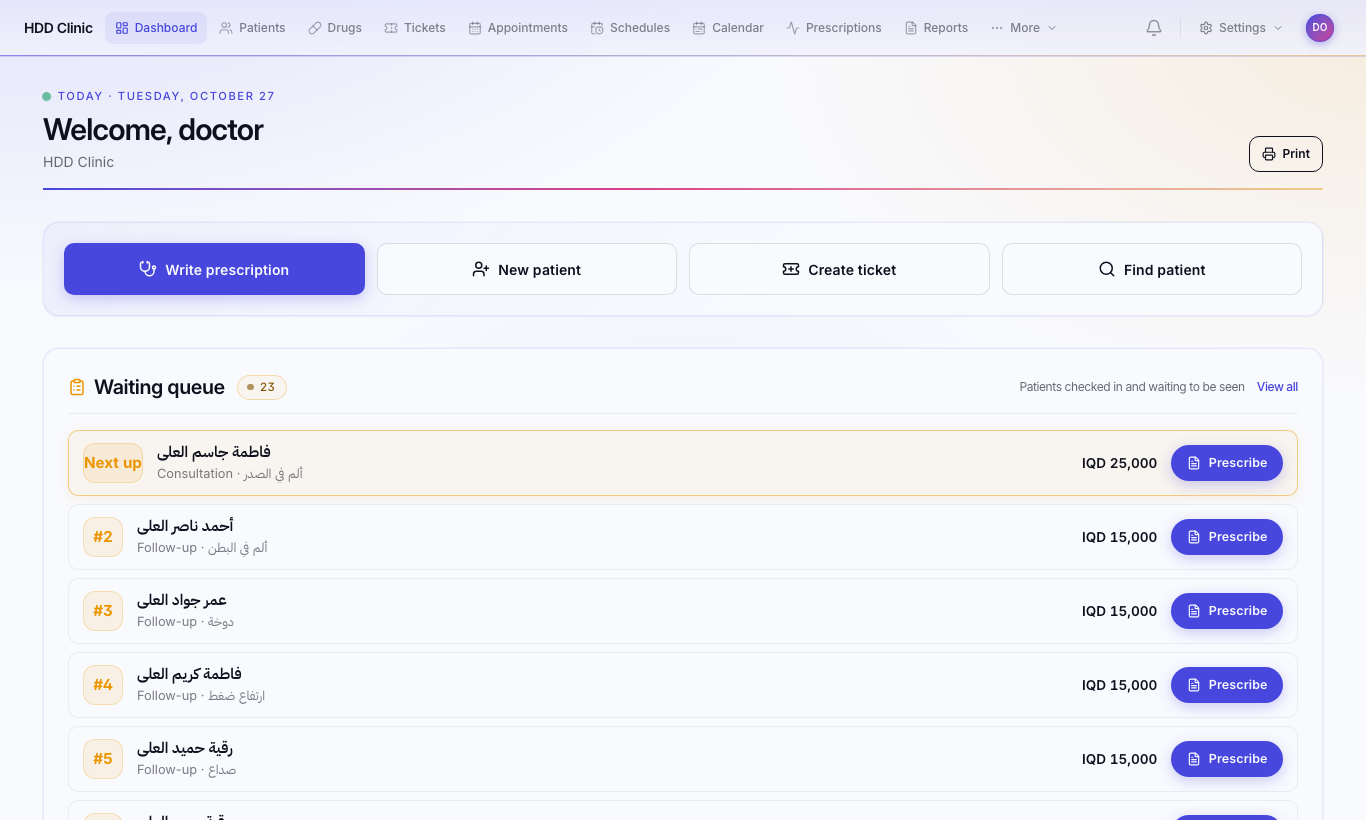
- Main menu: shows only the sections you have permission for. If something is missing, ask the clinic doctor.
- More: on narrow screens the remaining sections collapse under this button.
- Language: press the language button (EN / ع) in the top bar to switch between Arabic and English.
- Theme: light or dark from the top bar; colours under Settings → Appearance.
- Logout: in the top bar.
Two-step login (recommended for doctors)
Protects your account even if someone learns your password.
- Install an authenticator app (Google Authenticator, Microsoft Authenticator, Authy).
- Go to Settings → Two-step login and press Set up.
- Scan the QR code, enter the 6-digit code and press Turn on.
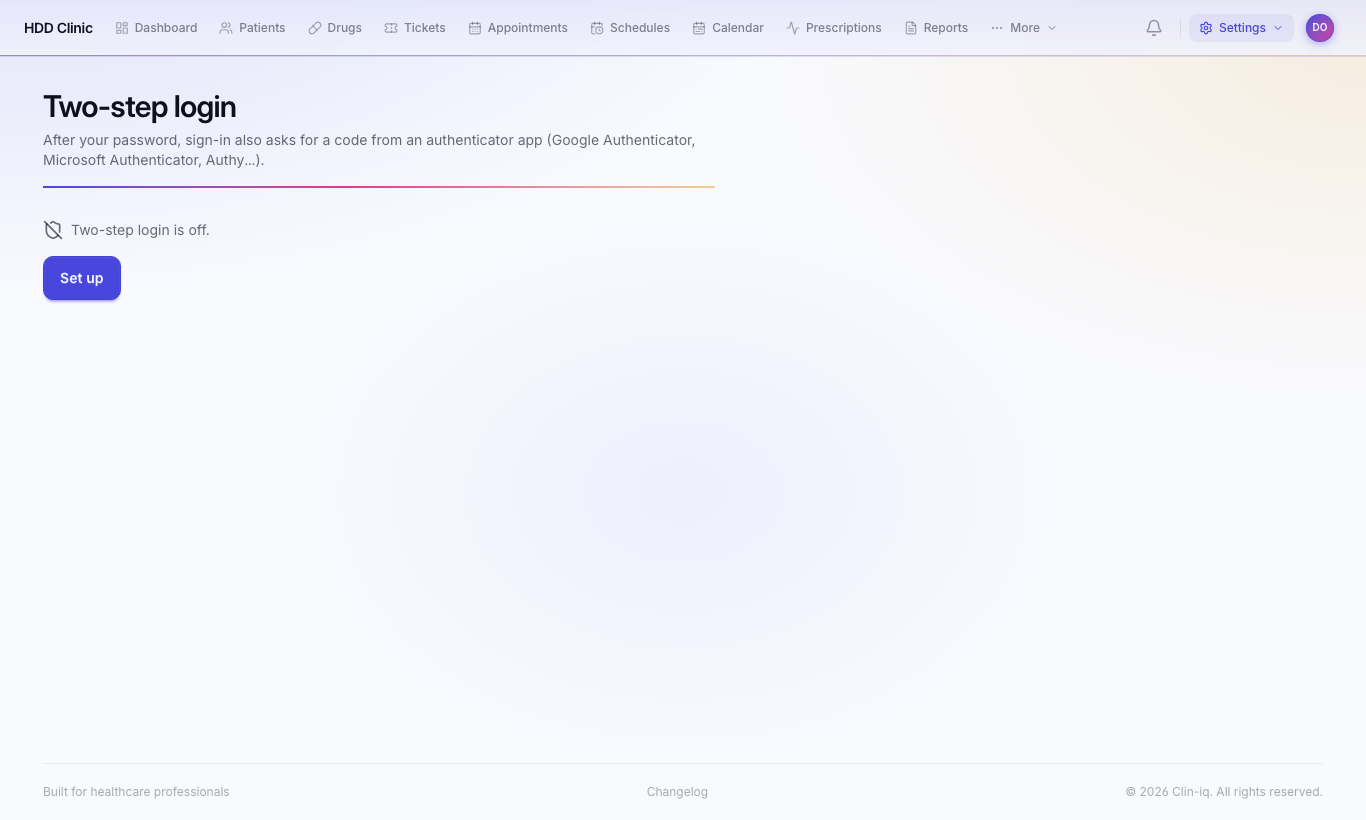
From now on, after your password the app asks for the Authenticator code. Turning it on signs out your other devices.
Lost your phone?
Ask the system administrator to reset your account. Turning it off yourself needs a current code from the app.
Sign-in problems
| Message | What to do |
|---|---|
| Login failed | Check username and password; capitals matter. |
| Invalid code | Make sure your phone's clock is set automatically, then retry. |
| Too many attempts | Wait 15 minutes and try again. |
| Sign-in timed out | Enter your password again. |