Reception & appointments
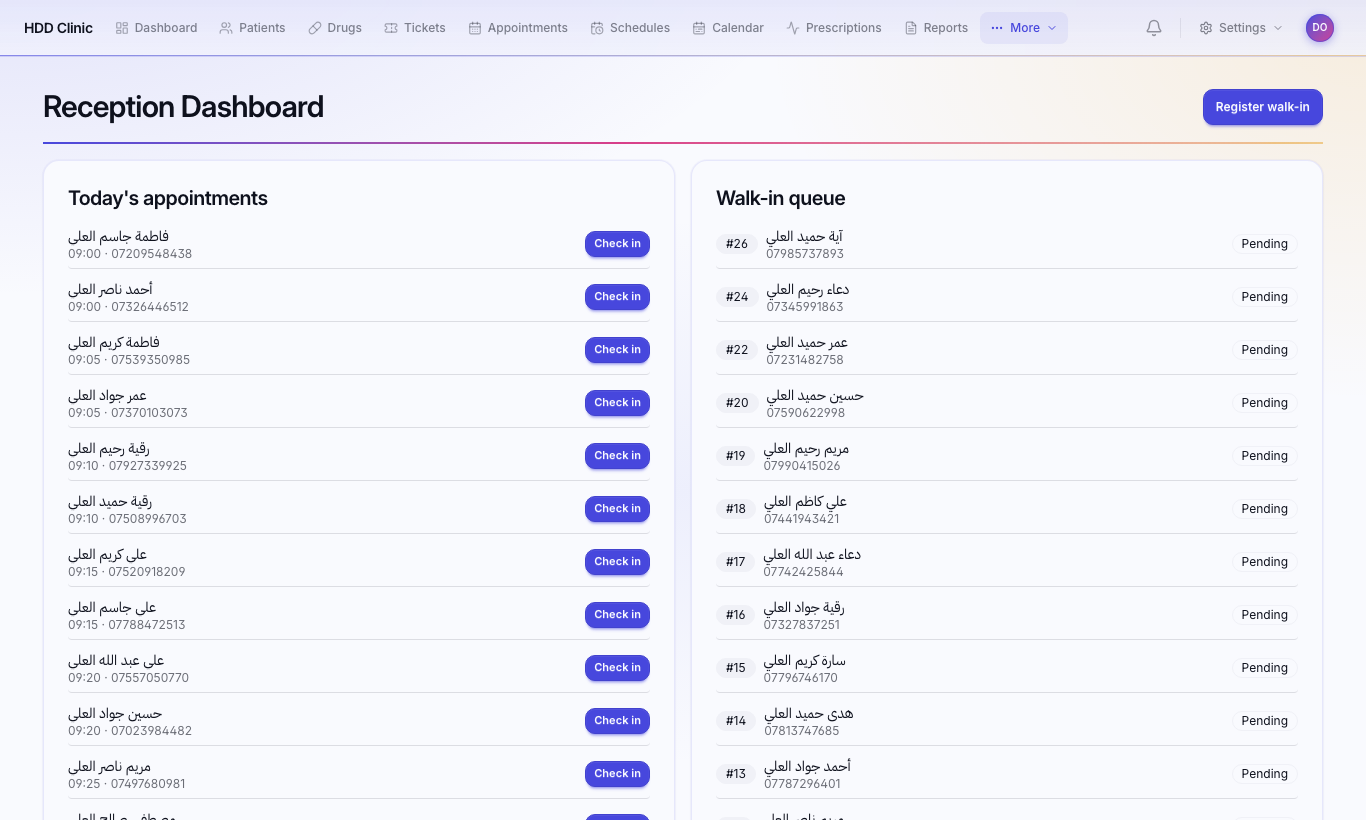
The reception dashboard
Go to Reception. It has two sides:
- Today's appointments: patients who booked ahead.
- Walk-in queue: tickets opened today.
It refreshes by itself every 30 seconds.
A booked patient arrives
Press Check in next to their appointment. A ticket with a queue number is created, the appointment's reason becomes the ticket's complaint, and the doctor sees them in the queue.
A patient without an appointment
- Press Register walk-in.
- Search the patient by name or phone, or create a new one.
- Press Register. The ticket is created and the patient joins the queue.
You can also press New ticket on Tickets and choose the patient and ticket type.
Payment
Open the ticket, press Mark as paid, then Receipt to print one. Prices per ticket type (consultation, follow-up, echo…) are set in Settings → Ticket Types.
Appointments
Appointments → New appointment: choose patient, doctor and time, then save.
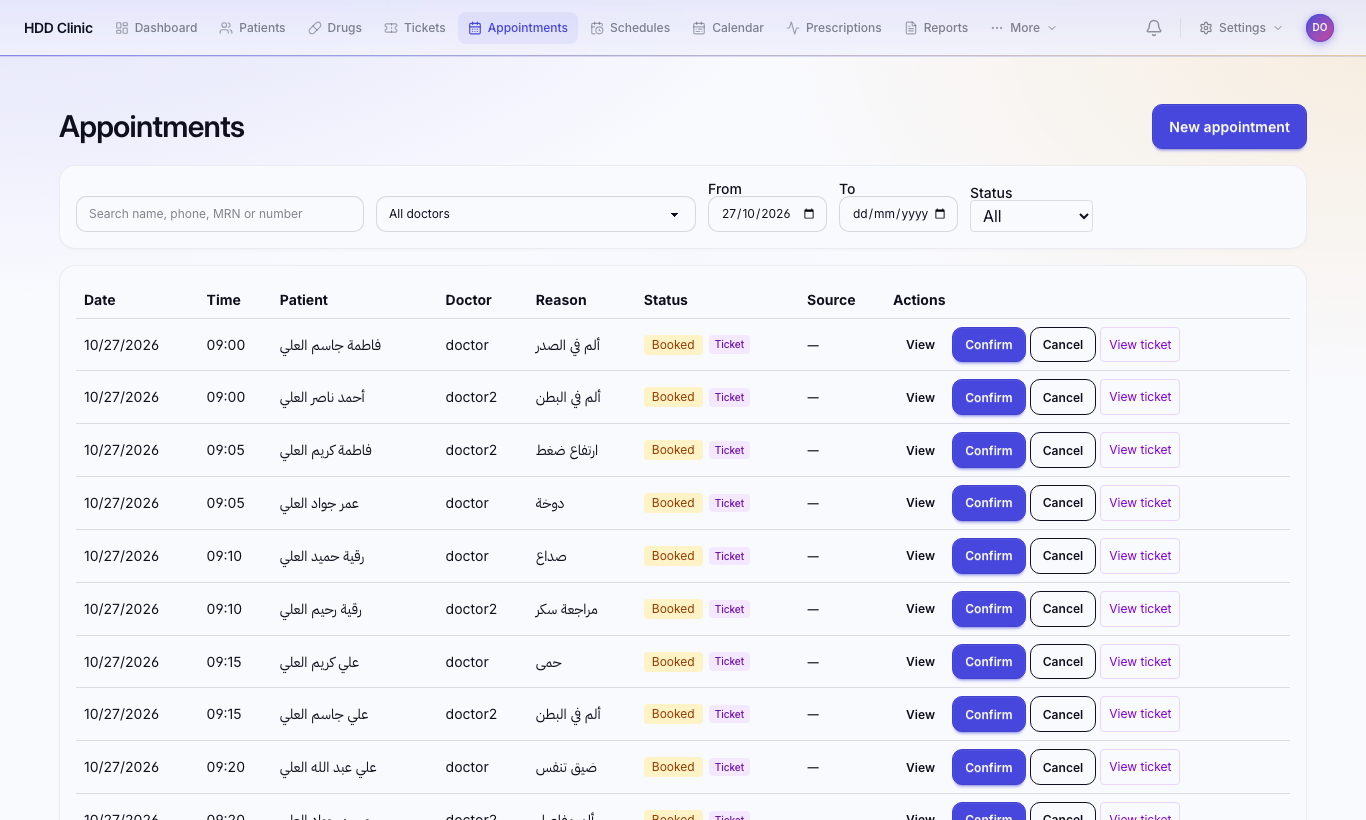
Appointment statuses:
Booked  →  Confirmed  →  Checked in (ticket created)  →  Completed
↘ Cancelled- An appointment must be confirmed before check-in.
- Cancel frees the time slot. If the patient was already checked in, their ticket is refunded automatically.
Outside the doctor's schedule
Choosing a time outside the doctor's hours or during time off shows Outside the doctor's schedule. Only users with the override permission can continue, and the appointment is clearly flagged.
Doctor schedules
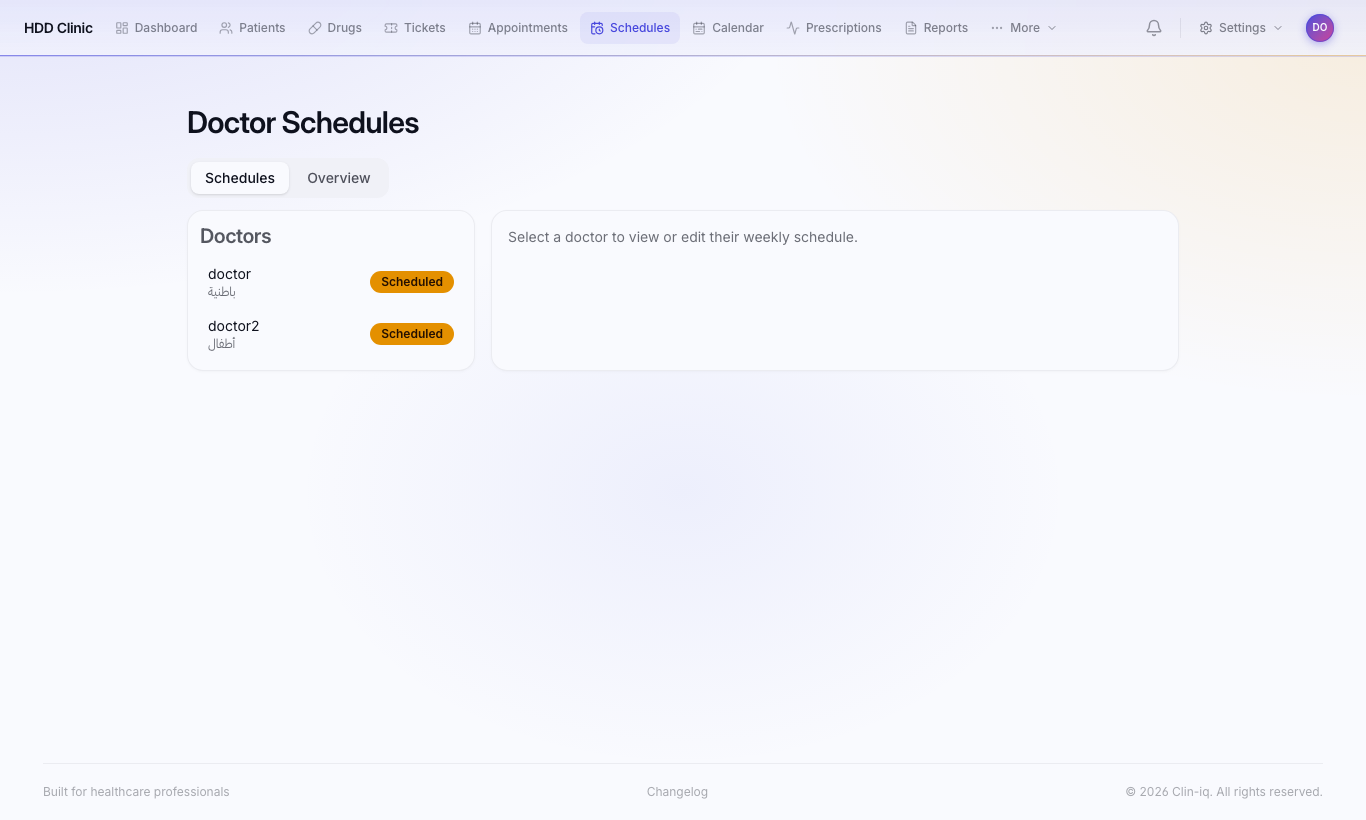
Schedules:
- Pick the doctor.
- For each day: Add shift, optionally Add break.
- Save schedule.
Time off → Add time off: a full day or part of a day. Booked appointments are never cancelled automatically; you get a list of booked appointments that now fall outside this schedule to call and rebook.
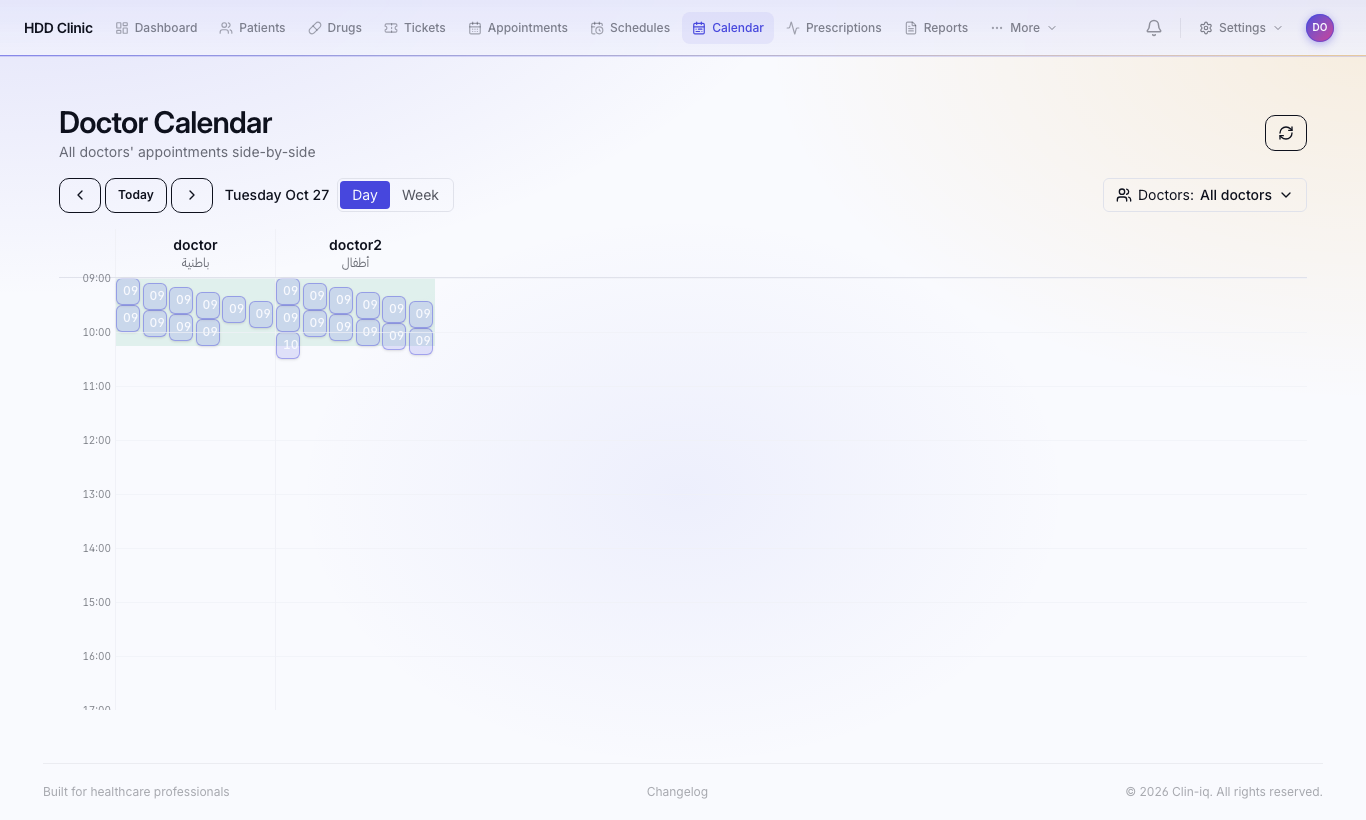
Calendar shows every doctor's hours and appointments by week, including time off and closed days.